
Tutorial
How to Make Motion Graphics Online
by TypeFlow Studio5 min read
Say you're editing a video and you need one animated title. Opening After Effects for that can feel like renting a crane to hang a picture. There's a lighter way: do it in your browser, download the finished clip, and drop it into Premiere or CapCut like any other footage.
The catch is that this works best when you start from a template instead of a blank canvas. You pick a layout, swap in your words, preview the motion, and export. It's fast because someone already designed the hard part.
When You Can Skip After Effects
After Effects is still the right tool if you need to track a graphic onto moving footage or build something completely custom. For a ten-second overlay, though, you're giving up very little by using a template, and you get the preview and the export matching each time. For a title that has to follow a moving car, stick with After Effects.
How to Do It
Open a motion graphics maker and start with the template that looks closest to what you picture. It pays to be picky here. A launch title and a chat overlay are built differently, and bending one into the other usually means more work than starting over.
Change the text, then match the colors to your footage. Next, watch the whole preview, and pay attention to the timing. If a line leaves before you can read it, make that part longer right there in the maker. Fixing it later by speeding up the clip in your editor squashes the motion and looks cheap.
When you're happy, export an MP4 if the graphic fills the screen, or a transparent MOV if it goes over video. In TypeFlow, transparent MOV comes with the Creator plan, and 4K and WebM come with the Studio plan. The Free plan gives you three 720p MP4 exports, which is enough to try the whole process.
Getting It Into Your Editor
Import the file into Premiere Pro, CapCut, Final Cut, or DaVinci Resolve and put it on a track above your footage. A transparent MOV should show your video underneath. An MP4 with a solid background works as a full-screen shot or a cutaway.
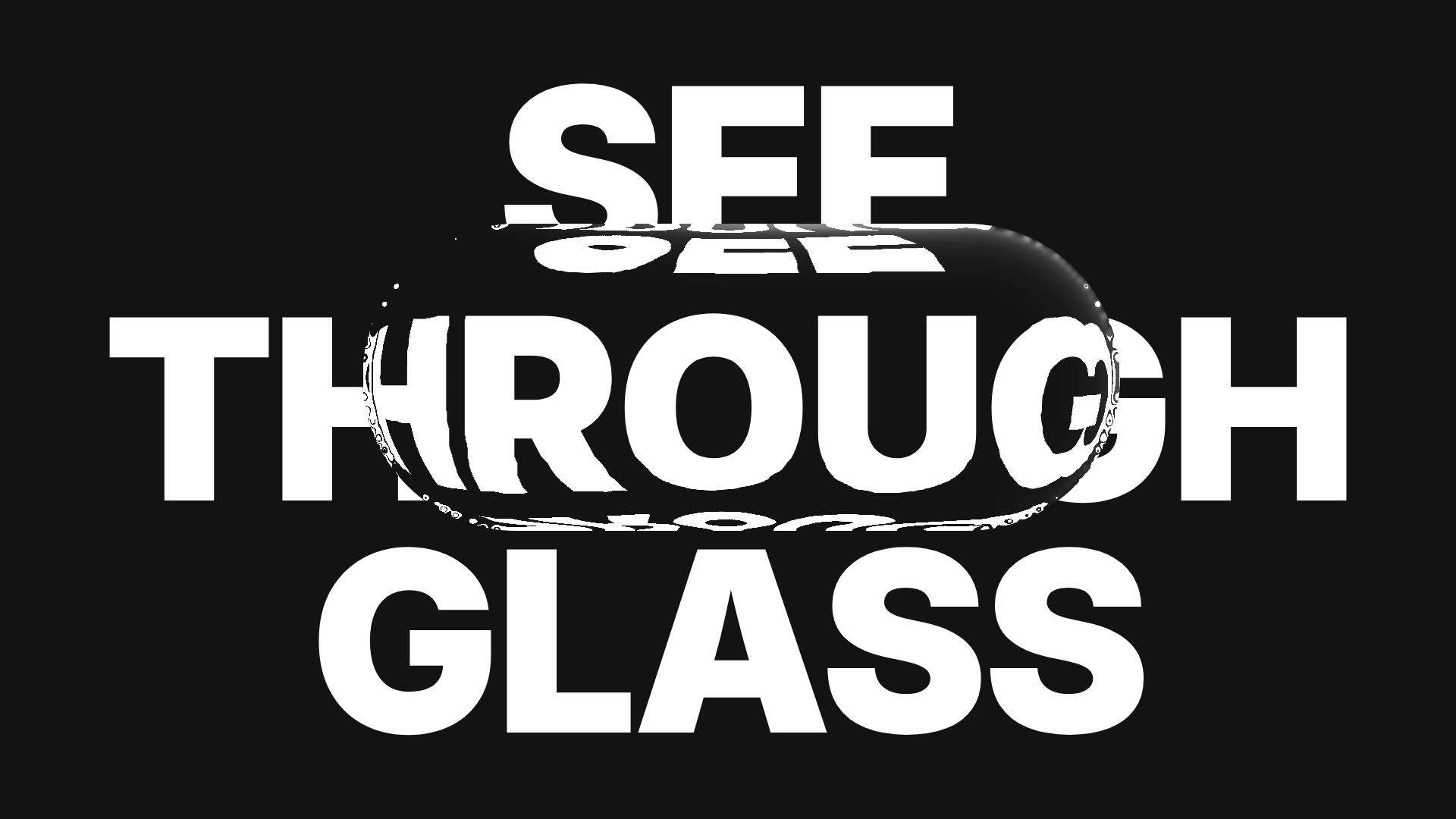
For a first try, the glass title and the product launch line are easy places to start. Export a short clip and make sure it imports properly before you commit to anything longer. If the transparency or aspect ratio is off, you'll want to find that out on ten seconds of video instead of a full sequence.
Start From a Template
Customize the graphic in your browser and export a clip ready for Premiere or CapCut.
Browse templates