
Tutorial
Count Time on a Seven Segment Clock
by TypeFlow Studio3 min read
How to Create a Retro LED Clock Animation for Your Videos
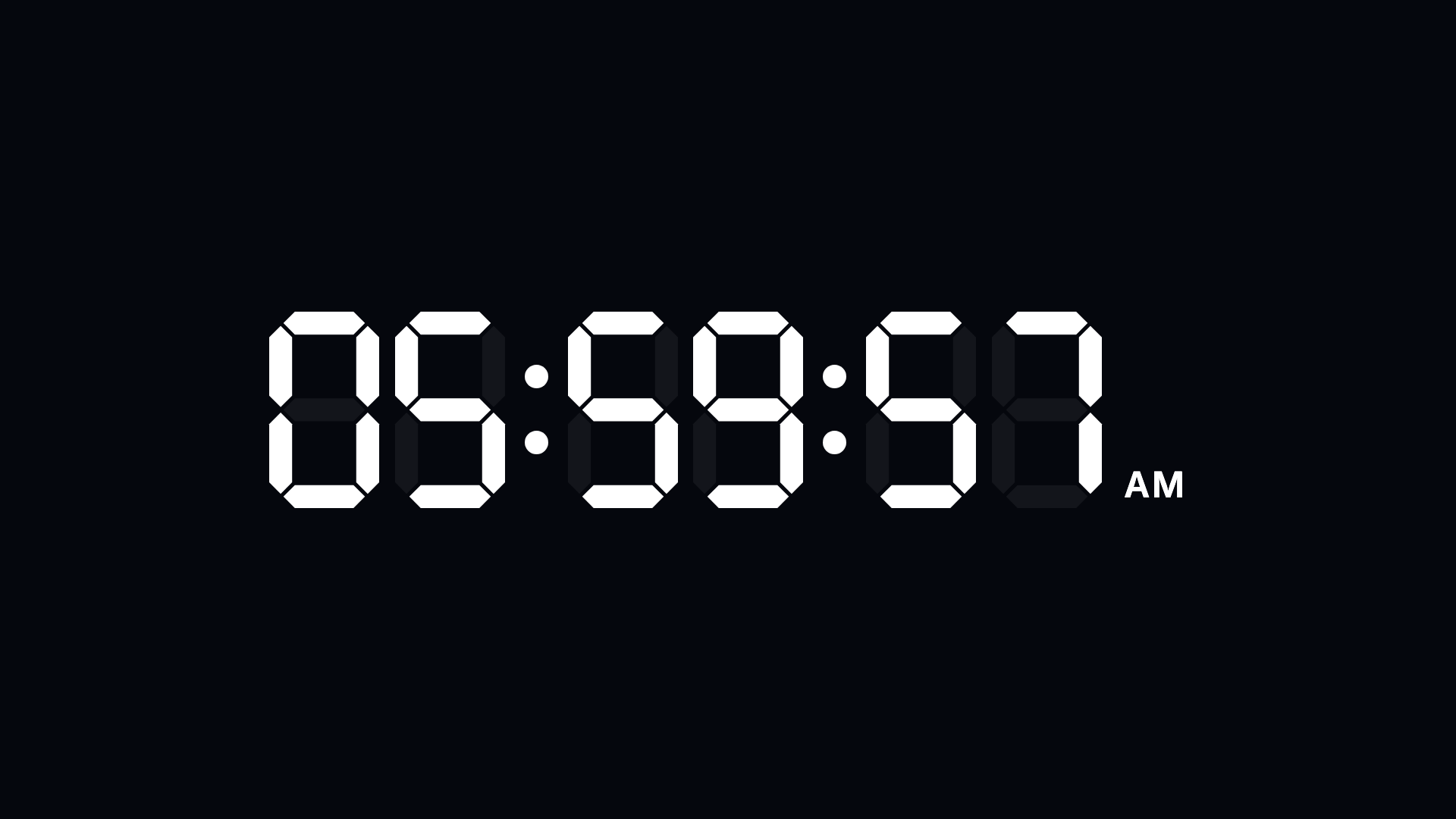
The familiar look of a digital clock is hard to miss. With its glowing numbers and distinctive seven-segment display, it's a style that works particularly well for countdowns, time jumps, travel recaps and those classic "hours later" transitions.
TypeFlow's Seven Segment Clock template lets you create your own animated clock, counting from one time to another without having to build the numbers yourself.
Start by setting the time you want the clock to count from and to. You can choose between 12-hour and 24-hour formats, and decide whether to display hours, minutes and seconds, or just two of those units.
You can also customise the look of the display. Adjust the size and thickness of the segments, add a slight slant or glow, and control how visible the unlit segments are. The colon between the numbers can stay on, blink or disappear altogether.
The clock can run close to real time or speed through a longer period in just a few seconds. You can also set how long it stays on screen before and after the countdown.
For a little extra detail, there's an optional beep on each tick when using the slowest playback speed.
Once you're happy with your clock, export it as an MP4, transparent MOV or PNG sequence and bring it into your favourite video editor.
The template is available on the Creator plan, with 4K and 60 fps exports available on Studio.
How to make a seven segment clock
- Open Seven Segment Clock. Find Seven Segment Clock in the gallery and open it in the editor.
- Set your start and end times. Choose the times you want the clock to count between. Select a 12-hour or 24-hour format and decide which digits to display.
- Customise the appearance. Adjust the clock size, segment thickness, slant and glow. You can also change how visible the inactive segments are and choose whether the colon stays on, blinks or disappears.
- Set the speed and sound. Adjust how quickly the clock counts and how long it pauses at the beginning and end. You can also enable a beep on each tick when using the slowest speed.
- Export your animation. Download your animation as an MP4, transparent MOV or PNG sequence, ready to use in your video editor.
Export your clock
Once you're happy with your clock, export it as an MP4, transparent MOV or PNG sequence and bring it into your favourite video editor. The template is available on the Creator plan, with 4K and 60 fps exports available on Studio.
Open the template