
Tutorial
How to Create a Text Reveal Using Shapes and Symbols
by TypeFlow Studio3 min read
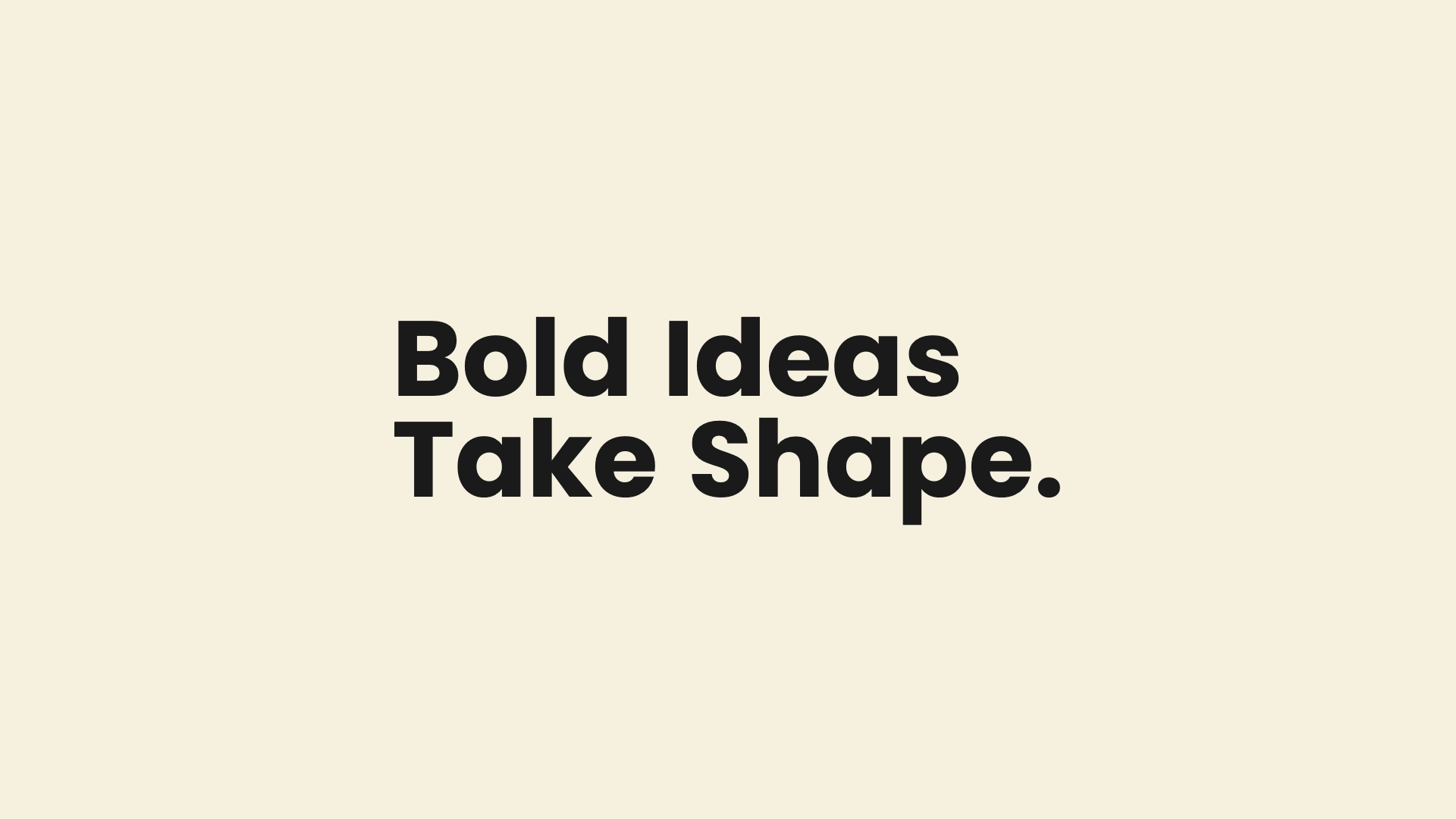
How to Create a Rebus Text Reveal Animation for Your Videos
What if your title started as a collection of symbols before revealing the actual words? That's the idea behind a rebus reveal. Selected letters cycle through shapes, patterns or emojis before turning into text, creating a puzzle-like effect that works well for product launches, title cards and social media videos.
TypeFlow's Rebus Reveal template lets you create this effect directly in your browser. Simply enter your text and choose which letters you want to replace with symbols. You can leave some letters untouched while others cycle through different designs, giving you control over how much of your title is revealed.
There are four symbol styles to choose from: geometric, bloom, pixel and emoji. You can adjust how many letters cycle through symbols and how quickly they change. At the end of the animation, the symbols can either decode into the actual letters or remain on screen.
You can also choose how the text enters the frame. Have it slide in from the left, drop in from the top, combine both directions or fade in one line at a time. For the colours, you can match the symbols to your text or use an accent palette with up to five colours.
Rebus Reveal is available on the Free plan, which includes three exports at 720p. Creator adds unlimited 1080p exports and transparent MOV, while Studio supports exports up to 4K at 60 fps.
How to Make a Rebus Reveal Animation
- Open Rebus Reveal. Find Rebus Reveal in the TypeFlow gallery and open it in the editor.
- Write your title. Enter your text and choose a font. Decide which letters should stay as they are and which ones should cycle through symbols.
- Choose your symbols. Pick from geometric, bloom, pixel or emoji styles. Set how many letters are replaced, how quickly the symbols cycle and whether they turn into text at the end.
- Set the entrance and colours. Choose how your title enters the frame: from the left, from the top, a mix of both or a line-by-line fade. Then customise the symbol colours to match your text or use an accent palette.
- Export your animation. Download your animation as an MP4, transparent MOV or PNG sequence, ready to use in your video editor.
Export your reveal
Once you're happy with the graphic, export it as an MP4, transparent MOV, or PNG sequence. Bring it into Premiere Pro, Final Cut Pro, DaVinci Resolve, or CapCut. Rebus Reveal is on the Free plan, with higher resolution and transparent MOV on Creator and Studio.
Open the template